Free tool Β· No sign-up required

Content is never reduced.
Only reorganised.

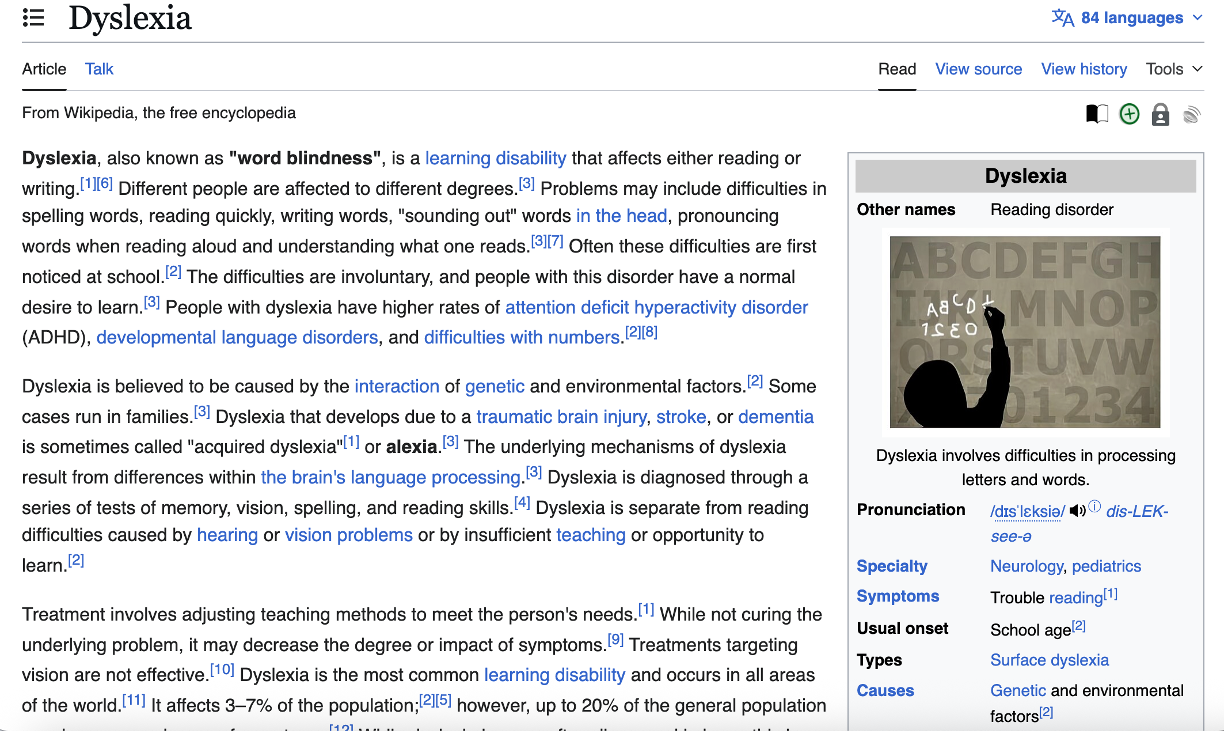
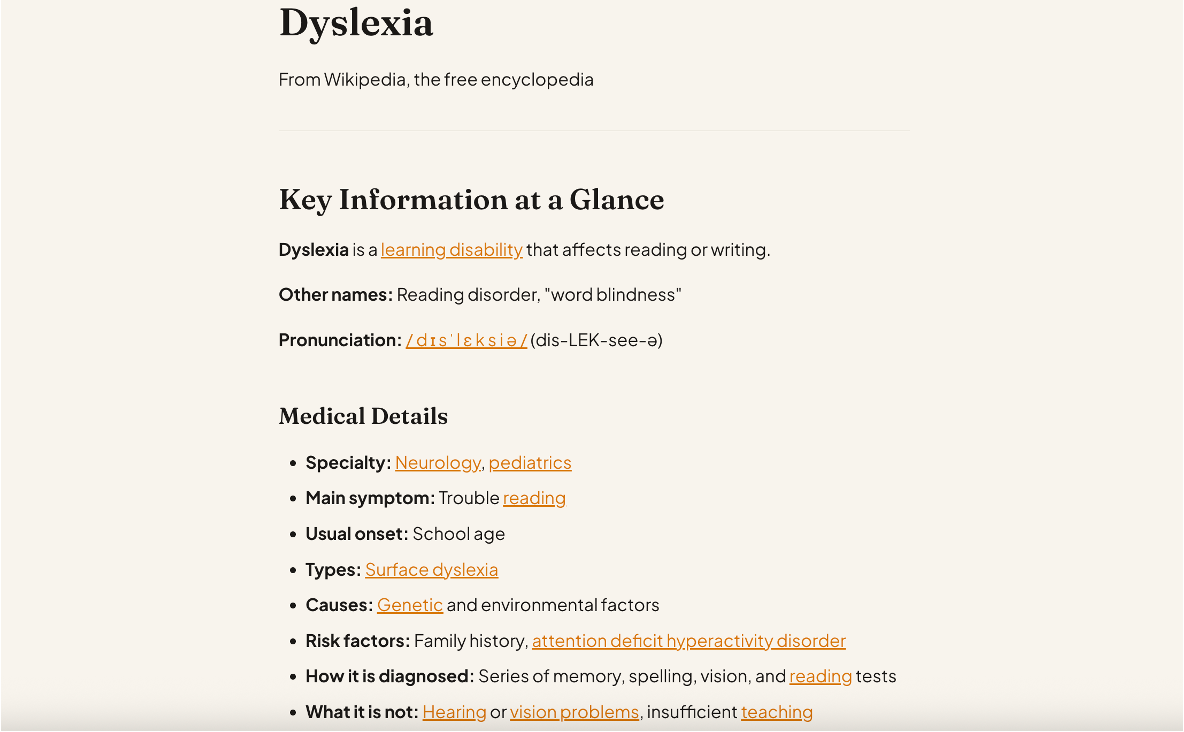
Dyslexia affects 1 in 10 people. Most AI tools default to dense, hard-to-read text. This changes that. Build your profile. Get your prompt. Done.
Build my prompt ↓
🧠 Works with Claude, ChatGPT, Gemini & Copilot
πŸ“± Web, desktop & mobile
⚑ Takes 2 minutes to set up
πŸ”’ Nothing is stored or sent anywhere
How it works

Three steps.
One better experience.

You build a profile. We generate a prompt. You paste it into your AI tool once. Every response changes.

1
Choose your dyslexia profile
Different types of dyslexia need different adjustments. Pick the one that fits β€” or choose Mixed if you're not sure.

Phonological β€” difficulty decoding words. Long or unfamiliar words cause friction. Plain language and definitions help.

Visual stress β€” text appears to move, blur, or is uncomfortable to look at. Spacing and layout matter most.

Working memory β€” losing the thread mid-sentence. Short sentences and clear chunking help you hold ideas.

Mixed / unsure β€” multiple traits apply. This generates a broad set of adjustments that cover all three.

2
Tune your specific needs
Toggle on the formatting rules that help you most. Turn off anything that isn't relevant. Test what works best for you.
3
Copy and paste β€” once
Paste your prompt into your AI tool's settings. Every conversation changes automatically from that point β€” on all your devices.
Prompt builder

Build your prompt

Select your profile, tune your preferences, then copy your prompt below.

Step 1 β€” Your profile
πŸ”€
Phonological
Word decoding is hard. Long words cause friction.
βœ“ Selected
πŸ‘οΈ
Visual Stress
Dense text moves or blurs. Layout matters most.
βœ“ Selected
🧠
Working Memory
Lose the thread mid-sentence. Need clear chunking.
βœ“ Selected
⚑
Mixed / Unsure
Multiple traits apply, or still figuring it out.
βœ“ Selected
Step 2 β€” Your preferences
βœ“
Short sentences
One idea per sentence
βœ“
Bold key terms
Anchor words for scanning
βœ“
Clear gaps
Space between sections
βœ“
Key point first
Most important thing, always first
βœ“
Interactive documents
HTML over Word docs
βœ“
Diagrams over prose
Visual structure preferred
βœ“
Plain language
Define technical terms
βœ“
Numbered steps
Never bury steps in prose
βœ“
No filler
Skip preamble, get to the point
βœ“
Summary first
TL;DR always visible at top
Step 3 β€” Your prompt
// Select a profile above to generate your prompt
Where do I paste this? ↓

One paste.
Works everywhere.

Choose your AI tool below. Paste once β€” it applies to every conversation automatically.

1
Go to claude.ai
Open claude.ai in your browser. Sign in if you aren't already.
2
Open Settings
Click your initials or profile icon in the bottom-left corner. Select Settings.
3
Find Personal Preferences
Look for the field that says "What personal preferences should Claude consider in responses?"
4
Paste your prompt and save
Paste using Cmd+V (Mac) or Ctrl+V (Windows). Click Save.
πŸ’‘ If you have other instructions to add, keep the total under 1,500 characters. Use the counter in the builder to check.
5
Start a new conversation
Open a new chat and ask anything. Your formatting will be active immediately.
βœ“ Syncs everywhere. Set it once on claude.ai β€” it automatically applies on the desktop app and mobile app too.
1
Go to chatgpt.com
Open chatgpt.com and sign in.
2
Open Personalisation settings
Click your profile icon (top right) β†’ Personalisation.
3
Open Custom Instructions
Click Custom Instructions. Make sure the toggle is switched on.
4
Paste into the first box
Paste your prompt into the field labelled "What would you like ChatGPT to know about you?". Click Save.
5
Start a new conversation
Open a new chat. Your formatting preferences will apply automatically.
βœ“ Applies to all new chats. Custom instructions do not affect existing conversations β€” only new ones started after saving.
1
Go to gemini.google.com
Open gemini.google.com and sign in with your Google account.
2
Open Settings
Click the Settings cog or your profile icon. Select Settings.
3
Find Custom Instructions or Extensions
Look for a Custom instructions or Personalisation section in the settings menu.
4
Paste your prompt and save
Paste your prompt into the text field. Click Save.
πŸ’‘ Gemini's personalisation features may vary by account type and region.
βœ“ Works across Google products. Once set, Gemini applies your preferences in Gmail, Docs, and other Google Workspace tools too.
1
Go to copilot.microsoft.com
Open copilot.microsoft.com and sign in with your Microsoft account.
2
Open the menu
Click the hamburger menu (three lines, top left) or your profile icon.
3
Add a custom instruction
Look for Preferences or Custom instructions. Paste your prompt into the available field.
4
Save and test
Click Save. Start a new conversation to confirm the formatting is active.
πŸ’‘ Copilot is also built into Microsoft 365 apps β€” your prompt may apply there too.
βœ“ Also works in Microsoft 365. If you use Copilot inside Word, Outlook, or Teams, your formatting preferences may carry through there too.

The problem isn't
the content. It's the container.

Dyslexia doesn't affect intelligence. It affects how information is decoded. The same content, structured differently, becomes accessible.

πŸ“„
Default AI output
Dense paragraphs. Long sentences. No visual anchors. All the information is there β€” but hard to extract.
⚑
With your prompt active
Short sentences. Bold anchors. Clear gaps. Same depth β€” far lower cognitive load.
🏫
The bigger picture
Imagine schoolwork, letters, reports reformatted this way. The content stays the same. The access changes entirely.

See ClearRead in action

❌ Without ClearRead
βœ“ With ClearRead